




















Home Linux How To Install Kali NetHunter : A Step-By-Step Guide

How To Install Kali NetHunter : A Step-By-Step Guide

For over a decade and a half, I’ve watched the cybersecurity landscape evolve at a breakneck pace.

From the early days of bulky laptops tethered to external Wi-Fi adapters, to the sleek, powerful mobile devices we carry today, the tools of the trade have continually miniaturized and become more accessible.

Among these advancements, one particular platform has consistently stood out for its audacity and utility: Kali NetHunter.

This isn’t just about running some Linux commands on your phone; it’s about transforming a consumer-grade Android device into a formidable penetration testing powerhouse.

Kali NetHunter takes the legendary Kali Linux distribution and meticulously re-engineers it for the mobile form factor, offering a unique blend of portability and raw hacking capability.

Before we dive deep into the installation process, let’s quickly outline where Kali NetHunter truly shines.

What Will I Learn?💁 show

Kali NetHunter: Use Cases at a Glance

Feature/Use Case Standard Kali Linux (Desktop/VM) Kali NetHunter (Mobile)
Portability Limited (laptop, requires power) Extreme (fits in your pocket)
Stealth/Discretion Less discreet (laptop usage can draw attention) Highly discreet (looks like normal phone use)
Wireless Attacks Excellent (with compatible external adapters) Excellent (with built-in support for injection/monitor mode on supported devices, or external adapters)
HID Attacks (BadUSB) Requires dedicated hardware (e.g., Teensy) Built-in (emulates keyboard/mouse via USB-OTG)
MANA Evil AP Configurable, but requires careful setup One-click setup via NetHunter app
Bluetooth Arsenal Available, but less integrated with mobile ecosystem Dedicated app features for reconnaissance, spoofing
Physical Access Requires physical presence with laptop Facilitated by mobile form factor (e.g., bypassing phone locks)
Resource Demands Typically higher Optimized for mobile hardware, but can be demanding
Root Access Required N/A (runs natively) Often required for full functionality (especially custom kernel)
Ease of Setup Generally straightforward Can be complex, device-dependent

Demystifying Kali NetHunter: More Than Just an App

Demystifying Kali NetHunter

When we talk about Kali NetHunter, it’s crucial to understand that it’s not a single app you just download from the Play Store (though there is a NetHunter app store). It’s a comprehensive platform comprising:

A custom Android ROM or kernel: This is the core. For full-fledged Kali NetHunter, you often need a device with a specifically patched kernel that enables functionalities like Wi-Fi injection, HID (Human Interface Device) attacks, and USB-OTG capabilities for external wireless adapters. This is where the magic truly happens, allowing low-level hardware interaction.

A Kali Linux chroot environment: This is essentially a miniature Kali Linux installation running within your Android environment. It contains all the familiar tools and utilities you’d expect from a desktop Kali Linux, but running in a chrooted container.

The NetHunter Android application: This provides a graphical interface for many common attacks and utilities, making it easier to launch complex operations with a few taps. Think of it as a user-friendly front-end for the underlying Kali Linux tools.

A dedicated NetHunter App Store: This is where you find and update the various tools and utilities specific to Kali NetHunter.

Over the years, Offensive Security, the creators of Kali Linux, have expanded the Kali NetHunter offerings to cater to different needs:

NetHunter Full: This is the traditional, most powerful version, requiring a rooted device with a custom recovery and a specific NetHunter-compatible kernel. This is where you unlock the full spectrum of hardware-level attacks.

NetHunter Lite: For rooted devices without a custom kernel, offering a more limited but still potent set of tools.

NetHunter Rootless: As the name suggests, this version works on non-rooted devices, leveraging Termux to run a Kali Linux chroot. While it lacks direct hardware interaction for advanced wireless attacks, it’s an excellent entry point for mobile pentesting.

NetHunter Pro: This is a relatively newer beast, offering a pure Kali Linux experience on mainline devices like PinePhones and certain Qualcomm devices, effectively turning them into full-fledged Linux desktops with mobile form factors.

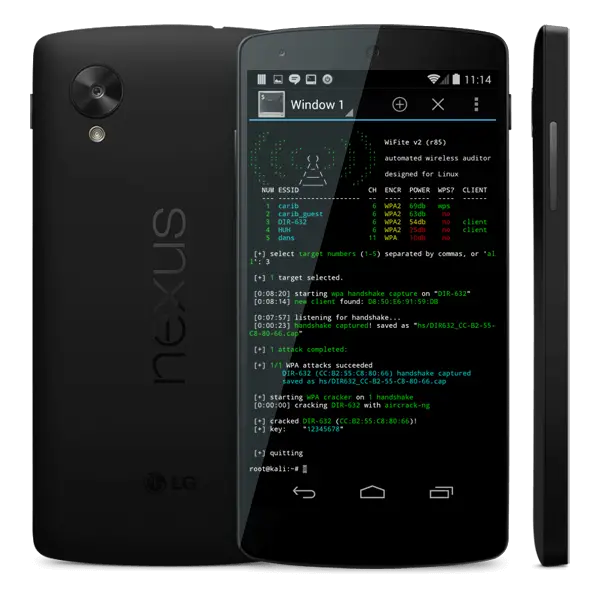
My journey with Kali NetHunter began years ago, tinkering with a Nexus 5. The sheer novelty of having a complete pen-testing suite in my pocket was exhilarating.

I remember performing a quick Wi-Fi reconnaissance scan in a coffee shop, mapping out networks and their vulnerabilities, all from a device that looked no different from any other smartphone.

The look on people’s faces when I’d subtly plug in a USB OTG cable and a tiny Alpha adapter, and then, with a few taps, start capturing handshakes, was priceless. It’s a discreet, agile platform that opens up possibilities that simply aren’t feasible with a laptop.

How to Install Kali NetHunter: A Deep Dive into the Mobile Arsenal

Installing Kali NetHunter isn’t a one-size-fits-all endeavor. The process varies significantly depending on your device’s compatibility and the version of Kali NetHunter you intend to install.

I’ll cover the most common scenarios, starting with the full-blown experience, which offers maximum capability, and then touching upon the more accessible rootless option.

Before You Start: Your Pre-Installation Checklist

This is your go-to list to ensure a smooth installation. Double-check everything before proceeding!

  • Supported Device: Is your exact phone model on the official Kali NetHunter compatible devices list? (Crucial for Full NetHunter).
  • Backed Up All Data: Your phone will be wiped! Is everything important saved elsewhere?
  • 80%+ Battery Charge: Do not attempt flashing on a low battery.
  • Quality USB Cable: A reliable connection prevents errors.
  • ADB & Fastboot Tools Installed: Is your host PC ready to communicate with your phone?
  • Unlocked Bootloader: Is your bootloader unlocked? (Required for Full/Lite).
  • Correct TWRP Image: Have you downloaded the precise TWRP version for your device and Android version?
  • Latest Magisk ZIP: Is the Magisk installer ready for rooting?
  • Appropriate NetHunter ZIP: Have you downloaded the correct Full/Lite/Rootless ZIP for your device from kali.org/get-kali/?
  • Stable Internet Connection: For downloading large files and chroot components.
  • Sufficient Internal Storage: At least 20GB free for Full NetHunter, more for extensive tools.

Crucial Prerequisites for NetHunter Full/Lite (Read This Carefully!)

Crucial Prerequisites for NetHunter

Before you even think about flashing, ensure you have these ducks in a row. Skipping any of these steps or making assumptions can lead to hours of troubleshooting, or worse, a bricked device.

Supported Device: This is absolutely paramount. Official Kali NetHunter images with custom kernels are only available for a limited, but growing, list of specific devices. These are devices for which Offensive Security or the community has built and tested a custom kernel capable of supporting NetHunter’s hardware-level functions (like Wi-Fi injection and HID emulation).

Always check the official Kali NetHunter documentation (kali.org/get-kali/) under the “Mobile” section for the most up-to-date and explicit list of supported devices and their specific NetHunter images.

Attempting to install Full NetHunter on an unsupported device without a specifically built and patched custom kernel will lead to a non-functional device or a soft-brick.

Unlocked Bootloader: This is a non-negotiable step for flashing any custom recovery or custom ROM/kernel. Unlocking your bootloader will factory reset your device, wiping all data (apps, photos, contacts, internal storage, etc.).

Back up all your important data to cloud storage or an external drive before proceeding.

The process for unlocking a bootloader is highly device-specific; a quick search for “unlock bootloader [your device model]” will usually yield detailed instructions from XDA Developers or your device manufacturer.

Generally, it involves enabling “OEM Unlocking” in Developer Options and using fastboot oem unlock (or similar commands like fastboot flashing unlock).

Custom Recovery (e.g., TWRP): You’ll need a custom recovery environment to flash the Kali NetHunter ZIP files and other components like Magisk. TWRP (Team Win Recovery Project) is the de facto standard for Android custom recoveries due to its robust features and wide device support.

Ensure you download the correct TWRP image (.img file) specifically built for your exact device model and Android version. Mismatched TWRP versions can cause flashing errors or boot loops.

Root Access (via Magisk is recommended): For the full Kali NetHunter experience, root access is essential. This allows the NetHunter components to interact directly with the underlying Android system and hardware.

Magisk is currently the preferred method for rooting Android devices. Its “systemless” approach means it modifies the boot partition minimally, making it more resilient to OTA updates and easier to hide from apps that detect root.

ADB and Fastboot tools: These command-line tools are vital for communicating with your Android device in various modes (normal, bootloader/fastboot, and recovery).

You’ll use them to unlock the bootloader, flash TWRP, and sometimes push files to the device. Install these on your host PC (Linux, Windows with WSL/drivers, or macOS).

Sufficient Storage: The Kali NetHunter chroot (the actual Kali Linux installation) can be quite large, often 5GB to 15GB, depending on the chosen full or minimal install. Ensure your device has ample internal storage before you begin. Lack of space during installation will cause critical failures.

Stable Internet Connection: You will be downloading large files (NetHunter images, ROMs, Magisk, potentially additional Kali packages). A stable, fast internet connection is crucial to prevent corrupted downloads.

Charged Device: Ensure your phone is at least 80% charged before you start any flashing process. A dead battery mid-flash can lead to a hard brick.

USB Cable: A high-quality USB data cable is essential for a reliable connection between your phone and your PC. Avoid cheap, charge-only cables.

My Personal Take on Device Selection:

Having experimented with various devices over the years, I can tell you that devices with strong custom ROM and kernel communities (like older Google Pixel devices, some OnePlus flagships such as the OnePlus 6/6T, 7 Pro, or even the 8 Pro) often provide the best balance of community support, custom kernel availability, and performance for Kali NetHunter.

Nexus devices were fantastic in their prime, but their hardware is showing its age. While it’s technically possible to port Kali NetHunter to newer, unsupported devices by building custom kernels from source, it’s a significant undertaking and not for the faint of heart.

For a smooth, relatively hassle-free experience, stick to officially supported devices for the “Full” Kali NetHunter installation, especially if this is your first rodeo.

Installation Method 1: Kali NetHunter Full (Recommended for Maximum Power)

This method gives you the complete Kali NetHunter experience, including hardware-level Wi-Fi injection, HID (Human Interface Device) attacks, and the full suite of Kali Linux tools operating directly on the device’s hardware. This is the choice for serious mobile penetration testers and security researchers.

Phase 1: Preparing Your Host PC and Device

Install ADB and Fastboot Tools on Your Host PC:

For Linux (Debian/Ubuntu-based): Open a terminal and run:

sudo apt update
sudo apt install adb fastboot -y

For other Linux distributions, refer to their package managers (e.g., dnf install android-tools for Fedora, pacman -S android-tools for Arch).

For Windows: Download the “SDK Platform Tools” from the official Android developer website (developer.android.com/studio/releases/platform-tools). Extract the platform-tools folder to an easily accessible location (e.g., C:\platform-tools).

For convenience, add this folder to your system’s PATH environment variable, or simply navigate to this directory in your command prompt/PowerShell whenever you need to use adb or fastboot.

You may also need to install universal ADB drivers (e.g., from clockworkmod.com or your device manufacturer’s website) to ensure your PC recognizes the phone correctly in different modes.

For macOS: Install Homebrew first (/bin/bash -c "$(curl -fsSL https://raw.githubusercontent.com/Homebrew/install/HEAD/install.sh)"). Then, run:

brew install --cask android-platform-tools

Download Necessary Files to Your Host PC:

Official Kali NetHunter Image: Navigate to the “Mobile” section of the official Kali Linux website (kali.org/get-kali/). Locate your specific device and download the “Full” NetHunter image (e.g., kali-nethunter-yourdevice-full.zip). Verify the checksum (SHA256) of the downloaded file against the one provided on the Kali website to ensure file integrity and prevent corrupted installations.

TWRP Recovery Image: Go to the official TWRP website (twrp.me/Devices/) and search for your exact device model. Download the latest stable TWRP image (.img file) that is compatible with your current Android version. Again, verify the checksum.

Magisk ZIP: Download the latest stable Magisk installation .zip file from the official Magisk GitHub repository (github.com/topjohnwu/Magisk/releases). Avoid beta versions unless you’re experienced and know the risks.

Device-Specific ROM (Optional but Highly Recommended): While you can try to install a custom ROM like LineageOS for better stability, it’s often advised. If you choose this route, download the latest stable LineageOS build for your device from their official website (download.lineageos.org). This will often be a .zip file.

If you’re already on a custom ROM that is known to be stable and supported by the NetHunter community for your device, you might be able to skip this step and proceed with your existing ROM.

Enable Developer Options and USB Debugging on Your Phone:

  • Go to Settings > About phone.
  • Tap “Build number” seven times rapidly. You’ll see a toast notification saying “You are now a developer!”
  • Go back to Settings > System (or just Settings on some older Android versions) > Developer options.
  • Toggle on “USB debugging.”

Crucially, toggle on “OEM unlocking.” This option must be enabled before you can unlock the bootloader. If it’s greyed out, your bootloader may already be unlocked or locked by your carrier/manufacturer (in which case, you might be out of luck for this method).

Phase 2: Unlocking Bootloader and Flashing Custom Recovery

WARNING: This phase will factory reset your device and wipe all data. Ensure your backup is complete!

Boot Your Phone to Fastboot/Bootloader Mode:

  • Power off your phone completely.
  • Press and hold the Volume Down button and the Power button simultaneously. Hold them until you see a screen with “FASTBOOT,” “Bootloader,” or similar text, often accompanied by an Android mascot lying down. The exact button combination can vary slightly by device (e.g., some Samsung devices might use Volume Down + Home + Power). Consult your device’s specific instructions if this combination doesn’t work.
  • Connect your phone to your PC using the USB cable.

Verify Fastboot Connection:

Open a terminal/command prompt on your PC and navigate to the directory where you extracted platform-tools (or where ADB/Fastboot are installed in your PATH).

Run the command:

fastboot devices

You should see a serial number or device ID listed, indicating your phone is recognized in fastboot mode. If you don’t see anything, troubleshoot your ADB/Fastboot installation, device drivers, or USB cable.

Unlock the Bootloader:

Execute the unlock command in your terminal:

fastboot flashing unlock

Alternative: On some older devices or specific manufacturers, the command might be fastboot oem unlock.

IMPORTANT: Your phone’s screen will change, presenting a confirmation prompt. It will warn you that unlocking the bootloader will erase all data and may void your warranty. Use the volume buttons on your phone to navigate to “Unlock the bootloader” (or similar wording) and press the power button to confirm.

Your device will then factory reset and reboot. This first boot after a factory reset can take longer than usual. Once it boots, you’ll go through the initial Android setup. You can skip most of this for now, as we’ll be wiping it again.

Boot to Fastboot Mode (Again) and Flash TWRP:

After the device has booted up and you’ve gone through the initial Android setup, power it off again.

Boot back into Fastboot mode (using the same button combination as before).

In your PC’s terminal, navigate to the directory where you downloaded your TWRP .img file.

Flash the TWRP recovery image:

fastboot flash recovery twrp-yourdevice-version.img

(Replace twrp-yourdevice-version.img with the actual filename of your downloaded TWRP image).

Note for A/B Partition Devices (Seamless Updates): Some modern Android devices use A/B partitioning. Flashing TWRP directly to the recovery partition might not stick. For these devices, you might need to boot TWRP temporarily instead of flashing it:

fastboot boot twrp-yourdevice-version.img

Once in TWRP, you would then install TWRP permanently from its “Install TWRP” option within the recovery itself, or flash it to both A and B slots. Consult your device’s XDA thread for the exact TWRP flashing procedure if fastboot flash recovery doesn’t work.

Immediately Boot into TWRP Recovery:

This is a crucial step to prevent the stock ROM from overwriting TWRP. While your device is still in Fastboot mode after flashing TWRP (or if you used fastboot boot), use the volume buttons on your phone to navigate to “Recovery Mode” and press the power button to select it. Your phone should now boot directly into the TWRP recovery interface.

If TWRP asks “Keep System Read Only?”, swipe to “Allow Modifications.”

Phase 3: Installing Custom ROM (Optional) and Rooting with Magisk

Perform Wipes in TWRP:

In TWRP, go to “Wipe” > “Advanced Wipe.”

Select the following partitions: Dalvik / ART Cache, System, Data, and Cache. Do NOT wipe internal storage at this point unless you have already copied all your downloaded files (NetHunter ZIP, Magisk ZIP, and optional Custom ROM ZIP) to an external SD card or a USB OTG drive. Wiping internal storage here would delete the very files you need to flash!

Swipe to “Wipe.”

Flash Custom ROM (if applicable):

  • If you chose to install a custom ROM (like LineageOS) for better stability, do it now.
  • Go back to the main TWRP menu, tap “Install.”
  • Navigate to where you placed your custom ROM ZIP file (it should be on your internal storage or external SD card).
  • Select the ROM ZIP file and swipe to confirm flash. This can take several minutes.
  • After the ROM flashes successfully, tap “Reboot System.” Let it boot up, complete the initial Android setup (skip through everything as quickly as possible), and then power off your phone. This ensures the ROM is stable before you layer on NetHunter.

Flash Magisk (Root):

  • Power off your device and boot back into TWRP recovery.
  • If you just installed a custom ROM and consequently wiped internal storage, you’ll need to transfer the Magisk ZIP file (and the Kali NetHunter ZIP) back to your device’s internal storage or external SD card. You can do this by connecting your phone to your PC while in TWRP; it should appear as a storage device.
  • In TWRP, tap “Install.”
  • Navigate to where you placed the Magisk .zip file.
  • Select the Magisk .zip file and swipe to confirm flash.
  • Once Magisk is flashed, tap “Reboot System.”

After your device boots up, open the Magisk app (it should be in your app drawer). If it prompts you to perform additional setup or update, allow it. It should show that Magisk is installed and fully rooted. Verify root access before proceeding.

Phase 4: Installing Kali NetHunter

This is the main event! The process will install the NetHunter components and the Kali Linux chroot.

Transfer NetHunter ZIP:

Ensure the downloaded Kali NetHunter ZIP file (e.g., kali-nethunter-yourdevice-full.zip) is on your phone’s internal storage or external SD card. If you had to wipe internal storage for the custom ROM, copy it over now.

Boot into TWRP:

Power off your device and boot back into TWRP recovery.

Flash Kali NetHunter:

In TWRP, tap “Install.”

Navigate to and select the Kali NetHunter ZIP file.

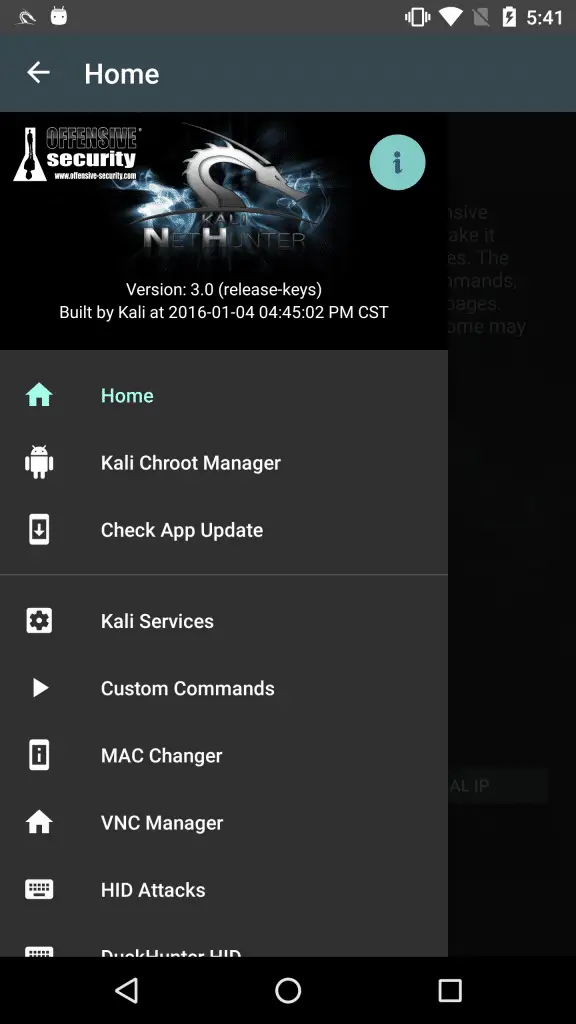
Kali NetHunter: Usage and installation on any Android device

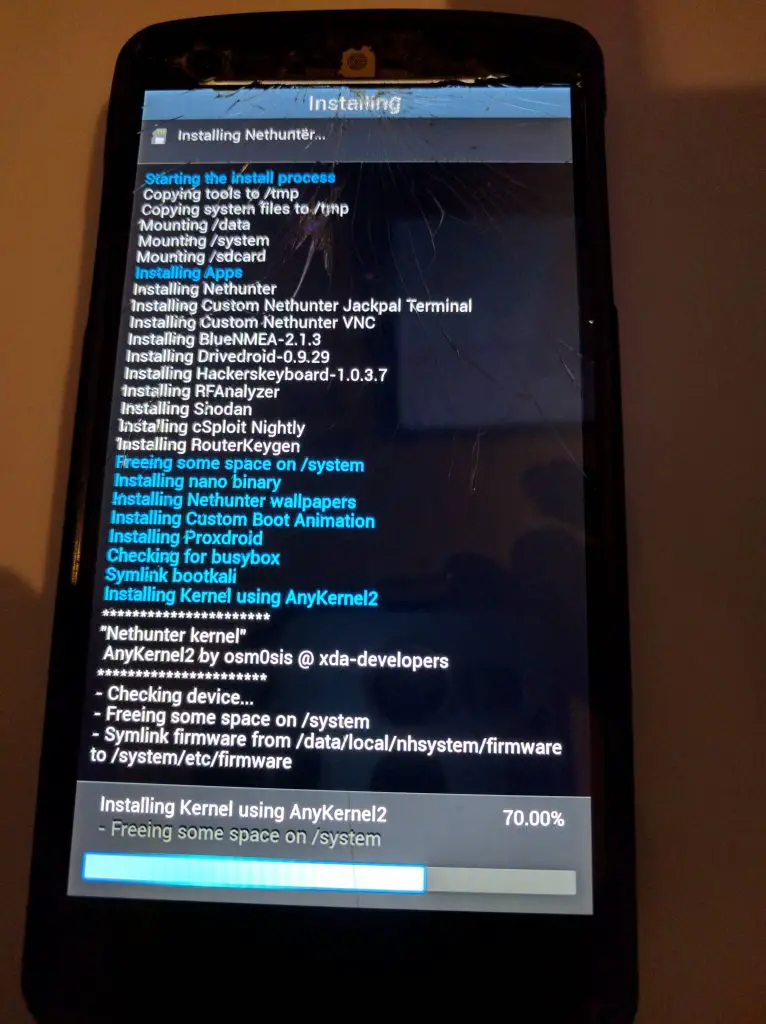
Crucially, swipe to confirm flash. This process will take a considerable amount of time (often 10-30 minutes, sometimes more, depending on your device’s speed and the size of the chroot). The TWRP interface might appear frozen, but be patient; it’s extracting and setting up the Kali chroot environment. You’ll see progress messages scrolling.

Wipe Dalvik/Cache (Optional but Recommended):

After the Kali NetHunter ZIP finishes flashing, go back to the main TWRP menu, then “Wipe” > “Advanced Wipe.” Select Dalvik / ART Cache and Cache. Swipe to wipe. This helps prevent minor conflicts.

Reboot System:

Tap “Reboot System.”

The first boot after installing Kali NetHunter can also take significantly longer than usual. You might even see a custom Kali boot animation. Be patient and do not interrupt the boot process.

Phase 5: Initial Kali NetHunter Configuration and Usage

Congratulations! If all went well, your device should now boot into Android with Kali NetHunter installed.

Launch the NetHunter App:

Once your phone boots up, you’ll find the new NetHunter app icon in your app drawer. Open it.

install kali nethunter on android

The app will immediately request root permissions. Grant them via the Magisk pop-up.

Verify and Update Chroot Manager:

Inside the NetHunter app, navigate to the “Chroot Manager” section.

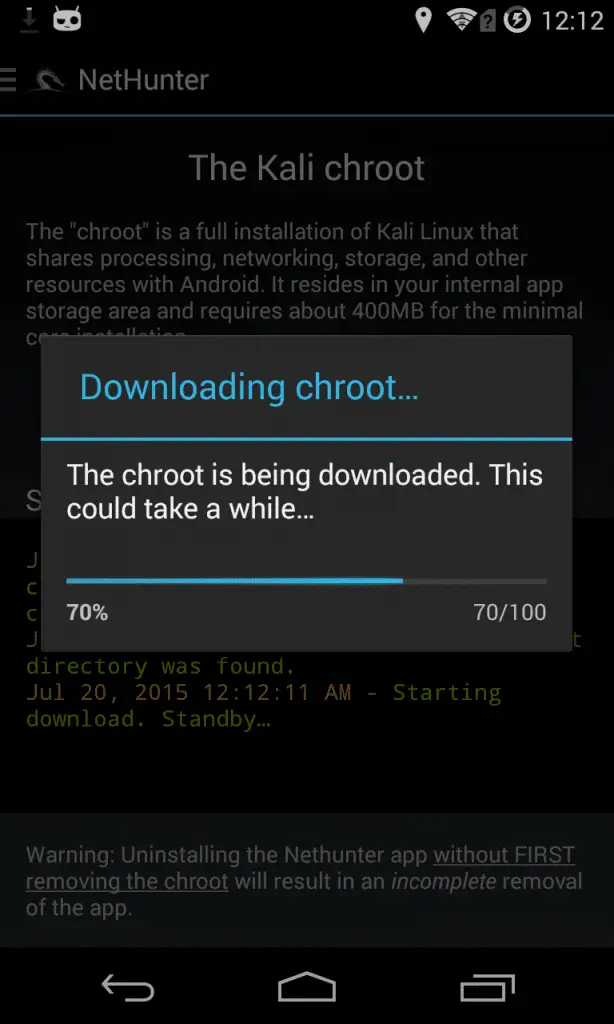
Here, you should see confirmation that the Kali Linux chroot is installed. You might be prompted to update it or install additional “meta-packages” (collections of tools like kali-linux-full, kali-linux-wireless, etc.). Installing these via the Chroot Manager will download additional tools into your Kali environment. This can be done later if you wish.

Set up Kali KeX (for Graphical Desktop):

  • For a graphical Kali Linux desktop experience, go to the “Kali KeX” section within the NetHunter app.
  • Set your VNC password. This password will be used to connect to the graphical desktop.
  • Tap “Start KeX” or a similar button to launch the VNC server.
  • You will then need a VNC client app on your Android device to connect to this server. The NetHunter KeX app (from the NetHunter App Store or Play Store) is specifically designed for this, or you can use a generic VNC Viewer (e.g., “VNC Viewer” by RealVNC from the Play Store).
  • Open your chosen VNC client. Connect to localhost:5901 (or 127.0.0.1:5901) using the VNC password you just set.
  • You should now see a Kali Linux desktop environment (typically XFCE by default)!

Real-world example: I’ve frequently used KeX on my OnePlus 7 Pro, connecting to a portable monitor via a USB-C to HDMI adapter. With a Bluetooth keyboard and mouse, it effectively transforms into a miniature, albeit somewhat less powerful, fully functional Kali workstation. It’s incredibly discreet for quick analysis or demonstrating tools on the go.

Access the Kali Terminal:

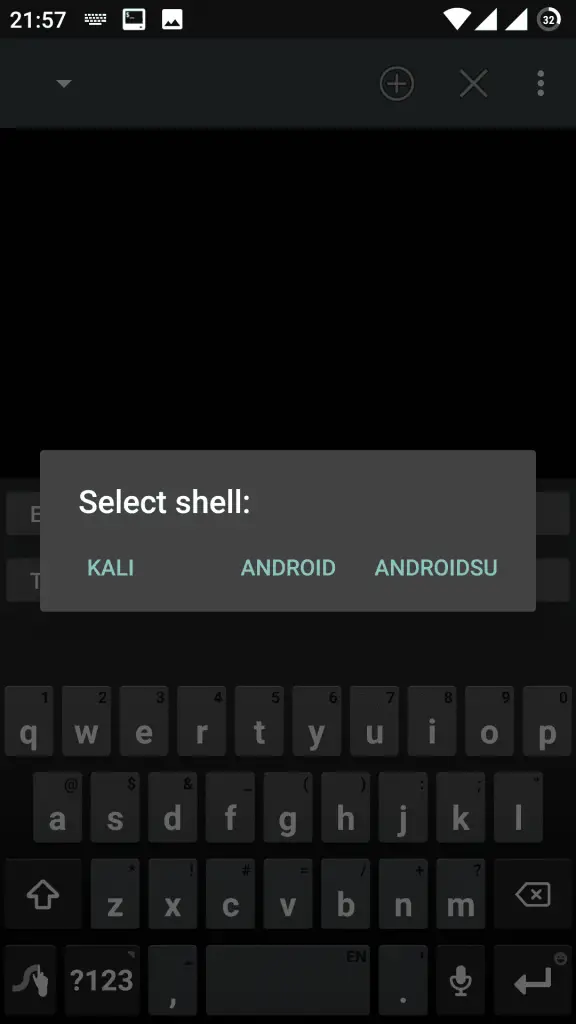
  • Within the NetHunter app, you’ll also find a “Kali Terminal” option. This provides a direct command-line interface to your Kali Linux chroot. This is often faster and more efficient for command-line tasks than using KeX for simple terminal operations.

Update Your Kali Linux Environment:

Whether you use the NetHunter Terminal or the KeX desktop’s terminal, it’s crucial to update your Kali environment regularly.

Execute these commands:

sudo apt update
sudo apt upgrade -y
sudo apt dist-upgrade -y

This ensures all your Kali tools and packages are up-to-date.

Installation Method 2: Kali NetHunter Rootless (for Non-Rooted Devices)

Kali NetHunter Rootless

If you have a device that cannot be rooted, or you simply prefer not to root your daily driver due to warranty concerns, corporate policies, or potential stability issues, Kali NetHunter Rootless is your answer.

This method leverages Termux to create a Kali Linux chroot environment, offering a significant portion of Kali’s toolset without requiring root access or kernel modifications.

Pros of Rootless:

  • No root required, preserving device warranty and integrity.
  • Significantly easier and safer installation process.
  • Ideal for a daily driver phone, as it runs as a normal app.
  • Less risk of bricking your device.

Cons of Rootless:

  • No hardware-level attacks: This is the primary limitation. You cannot perform Wi-Fi injection (monitor mode, deauthentication attacks, KRACK attacks, etc.), which requires kernel-level access. You also cannot perform HID attacks (BadUSB).
  • Bluetooth attacks are limited to what’s possible via Android’s high-level APIs.
  • Performance can be less robust than Full NetHunter, as it’s running in a more sandboxed environment.
  • Certain tools that require low-level network access or raw sockets might not function correctly.

Step 1: Install Termux

  1. Download Termux from F-Droid:
    • Crucially, do NOT install Termux from the Google Play Store. The version on the Play Store is often severely outdated and will lead to issues.
    • The best place to get Termux is from F-Droid, an open-source Android app repository.
    • Download the F-Droid client app first from their official website: f-droid.org/F-Droid.apk. Install it.
    • Open the F-Droid app, search for “Termux,” and install it from there. This ensures you get the latest, maintained version.

Step 2: Install NetHunter KeX (Optional but Recommended for GUI)

  1. Download and Install the NetHunter App Store:
    • Go to the official Kali Linux website: kali.org/get-kali/.
    • Scroll down to the “NetHunter App Store” section and download the NetHunter-Store.apk file. Install it on your phone. You may need to enable “Install from unknown sources” in your security settings temporarily.
  2. Install NetHunter KeX App:
    • Open the newly installed NetHunter App Store.
    • Search for “NetHunter KeX” and install it. This will be your VNC client to connect to the Kali Linux graphical desktop environment you’ll set up.

Step 3: Setup Termux for NetHunter

  1. Open Termux: Launch the Termux application. You’ll see a command-line interface.
  2. Update Termux Packages:
    • It’s essential to update Termux’s base packages first. Run the following command:
      pkg update && pkg upgrade -y
    • This might take a few minutes. If prompted to overwrite configuration files, generally choose Y (yes) unless you have specific reasons not to.
  3. Grant Storage Permissions:
    • The Kali Linux chroot needs access to your device’s storage. Run:
      termux-setup-storage
    • An Android permission prompt will appear. Grant storage access. This creates a symlink to your internal storage at ~/storage.
  4. Install wget and proot-distro:
    • wget is used to download files, and proot-distro is a Termux utility that allows you to manage and run various Linux distributions (like Kali) in a sandboxed environment without root.
    • Install them:
      pkg install wget proot-distro -y

Step 4: Install Kali Linux Chroot

  1. Install Kali with proot-distro:
    • Now, use proot-distro to download and install the Kali Linux root filesystem. This will create your Kali environment within Termux.
    • Run the command:
      proot-distro install kali
    • This command will initiate a large download (several gigabytes) of the Kali Linux rootfs and then extract it. This process can take a significant amount of time, depending on your internet speed and device’s performance. Ensure you have a stable internet connection and sufficient free internal storage.
    • Be patient and let the process complete. You’ll see many lines of text as it downloads and extracts.
  2. Login to Kali:
    • Once the installation is complete, you can enter your new Kali Linux command-line environment:
      proot-distro login kali
    • Your Termux prompt will change (e.g., from u0_aXXX@localhost:~$ to root@localhost:~# or similar), indicating you are now inside the Kali Linux chroot.

Step 5: Initial Kali Setup and KeX (GUI) Configuration (for Rootless)

Now that you’re inside the Kali environment, it’s time for some basic setup and optional GUI configuration.

  1. Update Kali (inside Kali chroot):
    • Even though you just downloaded it, it’s good practice to update Kali’s packages immediately.
    • While you are logged into the kali chroot (your prompt should reflect this), run:
      apt update && apt upgrade -y
    • This will update all the installed Kali packages.
  2. Install a Desktop Environment (if you want a GUI with KeX):
    • If you plan to use the NetHunter KeX app for a graphical Kali desktop, you need to install a desktop environment within your chroot. XFCE is generally recommended as it’s lightweight and performs well on mobile devices.
    • Still inside the kali chroot, run:
      apt install kali-desktop-xfce -y
    • WARNING: This command will download and install a very large number of packages, potentially consuming several gigabytes of storage and taking a substantial amount of time (even hours on slower connections/devices). Ensure you have ample space and a charger connected.
  3. Set up VNC Server:
    • Once the desktop environment is installed, you need to configure the VNC server that KeX will connect to.
    • First, set a VNC password (this is separate from your phone’s unlock password or any Termux password):
      vncpasswd

      You’ll be prompted to enter and confirm a password. You can also opt to set a view-only password.

    • Now, start the VNC server. The :1 indicates display number 1.
      vncserver :1
    • If you get an error that the VNC server is already running, you might need to kill it first: vncserver -kill :1
  4. Connect with NetHunter KeX App:
    • Switch to your Android home screen and open the “NetHunter KeX” app (the VNC client you installed earlier).
    • Enter the following connection details:
      • Address: 127.0.0.1 (or localhost)
      • Port: 5901 (this corresponds to display :1)
      • Password: The VNC password you set with vncpasswd.
    • Tap “Connect.” You should now see your Kali Linux XFCE desktop!

    Pro-Tip: To streamline the process of starting the VNC server, you can create a simple shell script in your Kali chroot. For example, create a file named startkex.sh with the following content:

    #!/bin/bash
    vncserver :1 -localhost no -geometry 1280x720 # Or any desired resolution

    Make it executable (chmod +x startkex.sh) and then you can simply run ./startkex.sh in the Kali terminal to start your GUI. You can also specify resolution (-geometry 1280x720) for a better fit on your screen.

How to Enter and Exit the Rootless Kali Chroot:

  • To enter Kali: Open Termux and type proot-distro login kali.
  • To exit Kali and return to Termux: Type exit.
  • To exit Termux: Type exit again (or swipe it away from recent apps).
Kali Linux NetHunter install in 8 minutes (rootless) and includes Android 15

Challenges and Troubleshooting: The Dark Side of Innovation

Challenges and Troubleshooting

While Kali NetHunter is a marvel of mobile engineering, it’s not without its quirks. Over the years, I’ve encountered numerous headaches during installations and daily use. Be prepared for some troubleshooting; it’s part of the learning curve and the deep dive into system internals.

Device Compatibility Issues (Full NetHunter): This remains the largest hurdle. If your device isn’t on the officially supported list for a custom kernel, you’re entering a world of compiling kernels from source – a path fraught with dependency hell, subtle configuration errors, and potentially hours of debugging.

I’ve personally spent countless hours debugging kernel compilation failures, only to find a minor config flag missing or a source file misplaced. Always check the official documentation before buying a device specifically for Full Kali NetHunter.

Android Version Mismatches: As Android evolves, so does the underlying system architecture and security features. Newer Android versions (e.g., Android 12, 13, 14) often introduce changes that break existing Kali NetHunter installations or require updated components, custom kernels, or even new Magisk patching methods.

Staying current with patches and kernels (if applicable) is essential. A NetHunter image built for Android 11 will likely not work correctly on Android 13 without significant modifications.

Magisk Module Conflicts: If you have other Magisk modules installed (e.g., for ad blocking, camera mods, etc.), they can sometimes conflict with Kali NetHunter’s low-level operations, especially with kernel interaction.

If you encounter strange behavior after installing NetHunter, try disabling other Magisk modules one by one in the Magisk app and rebooting to isolate the issue.

Insufficient Storage: The Kali chroot, especially with a full desktop environment and meta-packages, can consume significant internal storage. Running out of space during installation or updates will cause critical failures. Always ensure you have ample free space (ideally 20GB+ for Full NetHunter with a desktop and many tools).

Networking Glitches: Sometimes, after a successful installation of Full NetHunter, Wi-Fi or mobile data might act up. Double-check your device’s APN (Access Point Name) settings, and ensure no VPNs or firewall apps are interfering. Occasionally, a clean install of your custom ROM before NetHunter resolves underlying network stack issues.

ADB/Fastboot Driver Issues (Windows): On Windows, driver issues are a classic headache. Ensure you have the correct universal ADB drivers installed (e.g., from ClockworkMod or a Google Pixel driver package). Incorrect drivers mean your PC won’t properly recognize the phone in fastboot or ADB mode.

“Bricked” Devices (Soft-Bricks): While rare if you meticulously follow instructions, unlocking bootloaders and flashing custom firmware always carries a risk. A “soft-brick” means your device won’t boot into Android but might still be accessible via Fastboot or TWRP.

If you find your device unresponsive, search XDA Developers forums for “unbrick guides” specific to your device model. There’s usually a community-driven solution, often involving flashing stock firmware.

Performance Expectations: While powerful, remember you’re running a full Linux distribution (and often a graphical desktop) on mobile hardware, which isn’t designed for heavy computation.

Don’t expect desktop-grade performance, especially with resource-intensive tools like Metasploit Framework. Keep realistic expectations for compilation times, scan speeds, and GUI responsiveness.

“Error: Device not found” in ADB/Fastboot: This indicates a driver issue on your PC or that the device is not in the correct mode. Recheck drivers, reconnect the cable, and ensure the phone is in fastboot or ADB mode.

TWRP Errors “Failed to mount /system” or “Unable to mount storage”: This often means TWRP can’t decrypt your internal storage or the file system is corrupted. Try formatting data (Wipe -> Format Data -> type 'yes') if you’re prepared to wipe everything.

VNC/KeX Connection Issues (Rootless): Ensure the vncserver is running inside your Termux Kali chroot and that the port (5901 for :1) is correct. Also, double-check your VNC password.

My Personal Troubleshooting Ritual:

When things inevitably go south (and they will, trust me, it’s part of the fun of this niche), my routine is systematic:

1. Check Logs Religiously: Always check the adb logcat output during boot or installation if possible. In TWRP, immediately after a failed flash, look at the recovery logs (often accessible via “Advanced” > “Copy Log” or by scrolling up the terminal output in TWRP). These logs are your best friends for diagnosing the root cause.

2. Google is Your Oracle: Search relevant error messages verbatim on XDA Developers forums, Reddit (r/NetHunter, r/Kalilinux), and the official Kali Linux forums. Chances are, someone else has faced the exact same issue, and a solution or workaround has been discussed. Look for recent threads that match your device and Android version.

3. Community Support: The Kali NetHunter community is vibrant and generally very helpful. The official Kali Linux forums and Discord channels (check kali.org/community/) are excellent resources.

Be polite, provide detailed information about your specific device model, current Android version, the Kali NetHunter image you’re using, and the exact error messages or symptoms. Screenshots or log excerpts are invaluable.

4. Re-download Files: Corrupted downloads happen more often than you’d think, especially with large ZIP files. Always re-download all ZIPs and IMG files if you encounter unexplained errors during flashing or extraction. Verify checksums!

5. Start Fresh (The Nuclear Option): Sometimes, the quickest and most effective solution, especially after multiple failed attempts, is a complete wipe and re-installation from scratch.

This means re-downloading stock firmware (if possible for your device), flashing it, and then re-starting the entire unlock/TWRP/Magisk/NetHunter process. It’s frustrating, but it often saves hours of debugging minor, accumulated issues.

6. Read Device-Specific Instructions: The generic steps provided here are a starting point. Your device’s XDA Developers forum thread for its custom ROM or TWRP will almost certainly have specific nuances or extra steps (e.g., special partitions to flash, specific Magisk versions required, or peculiar boot-into-recovery methods). Read these carefully.

The Real-World Impact of Kali NetHunter

The Real-World Impact of Kali NetHunter

I’ve used Kali NetHunter in various scenarios over the years. While I’d never conduct a full-scale professional penetration test solely on a phone, it’s an unparalleled tool for specific, agile use cases. It enables capabilities that simply aren’t feasible with a laptop in certain environments.

Quick Reconnaissance: Need to quickly map out a local Wi-Fi environment, identify connected devices, or sniff basic traffic? Kali NetHunter excels here.

I’ve used nmap and airodump-ng on the fly to get a lay of the land in corporate environments or public spaces. The ability to do this discreetly from a device that looks like an ordinary phone is invaluable.

“Red Teaming” Simulations / Physical Access Engagements: For discreet physical access testing, the HID attacks (BadUSB) are incredibly valuable. Imagine walking into an office, plugging in your seemingly innocent phone via USB-C to a workstation, and having it emulate a keyboard to execute a payload or bypass a basic screen lock.

It’s surprisingly effective for demonstrating vulnerabilities that rely on physical access and trust. I’ve even built a small script to automatically open a PowerShell session and execute a predefined command upon connection.

Teaching and Demonstrations: As an educator in cybersecurity, demonstrating network attacks or forensics concepts becomes incredibly engaging and tangible when done from a device that looks like a normal phone.

It demystifies the process, making advanced concepts relatable and less intimidating to students. Seeing a Wi-Fi deauthentication attack performed from a phone drives home the point far more vividly than a theoretical discussion.

Learning on the Go: For aspiring cybersecurity professionals or those studying for certifications, having a portable Kali environment means you can practice commands, learn how different tools (like msfconsole, sqlmap, nmap) work, and explore concepts anywhere, anytime.

I’ve spent countless hours on flights, train commutes, and even just waiting in line, utilizing Termux and the Kali chroot to hone my skills.

IoT Security Assessments (Limited): With the right external adapters (e.g., USB-to-Ethernet adapters, specific Bluetooth dongles), Kali NetHunter becomes a portable hub for interacting with various IoT devices.

Leveraging Bluetooth or Wi-Fi, you can probe for vulnerabilities, enumerate services, or even attempt to exploit common weaknesses. I’ve personally used it to enumerate smart home devices on a local network and identify open ports or default credentials.

One particularly memorable instance involved a client whose guest Wi-Fi was supposedly isolated and secure. With my Kali NetHunter setup (specifically, an older Nexus 5 with an Alpha adapter), I was able to demonstrate how a simple misconfiguration in their corporate access points allowed me to jump from the isolated guest network directly into their internal network, all from a discreet corner of their lobby.

The immediate, tangible proof generated from a phone that looked innocuous was far more impactful and convincing than a lengthy written report. It highlighted a critical flaw in their network segmentation that had gone unnoticed.

Essential Accessories for Your Kali NetHunter Arsenal

Essential Accessories for Your Kali NetHunter Arsenal

While your phone is the core, certain accessories elevate Kali NetHunter from a powerful software suite to a complete mobile penetration testing rig. Investing in these can significantly expand your capabilities.

USB-OTG (On-The-Go) Adapter/Cable: This is non-negotiable for Full Kali NetHunter. It allows your Android device to act as a USB host, enabling connection of external USB devices like keyboards, mice, and crucially, external wireless adapters. USB-C to USB-A adapters are common for modern phones.

External Wireless Adapter (for Wi-Fi Injection/Monitor Mode):

Alfa AWUS036ACM/AC1200, AWUS036ACH, AWUS036NHV: These are industry standards for Wi-Fi pentesting due to their robust chipset support for monitor mode and packet injection.

Ensure the chipset is compatible with the NetHunter kernel you’re using (e.g., RTL8812AU, RT3070). These enable deauthentication attacks, WPA/WPA2 handshake capture, and more advanced wireless reconnaissance.

My experience: Carrying a small Alfa adapter is paramount. It allows me to perform targeted deauthentication attacks to capture WPA handshakes for offline cracking, a capability that truly differentiates Kali NetHunter from basic network scanners.

Portable Battery Bank (Power Bank): Running intensive Kali tools (especially with KeX and external adapters) will drain your phone’s battery rapidly. A high-capacity power bank is crucial for extended engagements or even a full day of use. Look for one with Power Delivery (PD) for faster charging.

USB Hub (Powered is Best): If you plan to connect multiple USB devices (e.g., external Wi-Fi adapter, Ethernet adapter, USB drive), a powered USB hub is essential to prevent power draw issues that can destabilize your phone or the connected peripherals.

USB-C to Ethernet Adapter: For wired network assessments or connecting to devices without Wi-Fi, this adapter allows your phone to become a wired network interface for tools like nmap or Bettercap.

Portable Keyboard & Mouse (Bluetooth or USB): While you can use the on-screen keyboard, a physical keyboard and mouse, especially for KeX, dramatically improve usability and efficiency for command-line work or navigating the GUI. A small foldable Bluetooth keyboard is my go-to.

SD Card (High Capacity & Speed): For storing large chroot images, captured data (pcap files), dictionaries for cracking, and logs, a high-capacity, fast SD card is invaluable.

SDR (Software Defined Radio) Dongle (e.g., RTL-SDR): For advanced radio frequency analysis beyond Wi-Fi and Bluetooth, an RTL-SDR dongle opens up possibilities for listening to various frequencies (ADS-B, FM radio, some ISM bands) using tools like gnuradio or rtl_433 within the Kali NetHunter environment.

External USB Drive/SSD: For large file transfers or creating persistent storage for your Kali environment, an external USB drive or SSD provides additional capacity and speed.

Advanced Kali NetHunter Usage Scenarios: Beyond the Basics

Advanced Kali NetHunter Usage Scenarios

Once you’ve mastered the installation, Kali NetHunter truly shines in specific advanced scenarios. Here are a few more critical tools and their mobile applications:

MANA Evil Twin AP (Full NetHunter): This powerful feature, directly accessible from the NetHunter app, allows you to set up a rogue access point that mimics legitimate networks.

It can capture credentials, redirect traffic, and even inject content. I’ve used this in controlled environments to demonstrate phishing vulnerabilities by setting up a convincing fake Wi-Fi network.

BadUSB HID Attacks (Full NetHunter): Create sophisticated payloads that execute automatically when your phone is plugged into a target machine’s USB port.

This can involve keyboard emulation to open a command prompt, download and execute malware, or even bypass login screens (if not securely configured). You can script these attacks directly within the NetHunter app using pre-built payloads or custom scripts. This is pure red-team magic.

One-Click Attacks: The NetHunter app bundles several “One-Click Attacks” for quick execution of common scenarios like MAC Changer, USB keyboard attacks, or Wi-Fi scan and deauth. While simple, they’re excellent for rapid demonstrations or initial reconnaissance.

Wireless Frame Injection & Deauthentication (Full NetHunter): Using an external wireless adapter and tools like aircrack-ng suite, you can perform targeted deauthentication attacks to force clients to reconnect, allowing you to capture WPA/WPA2 handshakes for offline cracking using tools like Hashcat or John the Ripper (though these are resource-intensive on mobile).

Bluetooth Arsenal (via NetHunter App): NetHunter includes a dedicated Bluetooth section for reconnaissance (bluetoothctl), spoofing (bluetooth-hcitool), and even some basic exploitation of Bluetooth Low Energy (BLE) devices using tools like GATTtool or bleah. This is useful for targeting insecure IoT devices or older Bluetooth peripherals.

Network Mapping and Vulnerability Scanning with Nmap: The classic network scanner is fully functional. Perform quick host discovery (nmap -sn), port scanning (nmap -p-), service version detection (nmap -sV), or even OS detection (nmap -O) directly from your phone.

Web Application Testing with Nikto & Sqlmap: While the GUI can be slow, Nikto for web server scanning and Sqlmap for SQL injection testing are powerful command-line tools that run surprisingly well for targeted assessments on Kali NetHunter.

Password Cracking (Limited): Tools like Hashcat or John the Ripper are present. While mobile CPU/GPU power is no match for a dedicated cracking rig, for small wordlists or simple hashes, it can be useful for demonstrating concepts.

VPN Tunneling: For anonymous and secure penetration testing, integrate OpenVPN or WireGuard directly into your Kali chroot. This allows you to tunnel all your Kali traffic through a VPN server, masking your IP address and encrypting your data.

Persistent Storage and Custom Chroots: Learn to create persistent directories for your work, ensuring that data (like captured files, scripts, or custom tool installations) isn’t lost if the chroot is re-initialized. Advanced users can even build custom Kali chroots with only the tools they need.

Optimizing Performance and Power Management: The Mobile Realities

Optimizing Performance and Power Management

Running a full Linux distribution and resource-intensive tools on a mobile device comes with its challenges, particularly concerning performance and battery life. Managing these effectively is key to a successful Kali NetHunter operation.

Minimize Running Processes: When not in use, kill unnecessary processes in your Kali chroot (e.g., close KeX if you’re only using the terminal). Use htop to identify resource hogs.

Use the Terminal (CLI) Heavily: The graphical desktop (KeX) is convenient for visual tasks, but the command-line interface is far more efficient and consumes significantly fewer resources. Master CLI tools for scanning, scripting, and data manipulation.

Choose Lightweight Desktop Environments: If you must use a GUI, XFCE is the default for a reason – it’s lightweight and performs adequately. Avoid heavier environments like GNOME or KDE, which will severely bog down your mobile device.

Adjust KeX Resolution: Lowering the resolution in KeX (e.g., vncserver :1 -localhost no -geometry 800x600) can significantly reduce the graphical load and improve responsiveness, especially on older devices.

External Power is Your Friend: Always have a high-capacity power bank or access to a wall outlet when performing intensive tasks. Wi-Fi injection, CPU-bound cracking, constant screen-on time, and running multiple tools will rapidly drain your battery.

Manage Background Android Apps: On the Android side, close any unnecessary background apps that might be consuming RAM or CPU cycles. Use Android’s built-in battery optimization settings to restrict background activity for non-essential apps.

Consider nohup, screen, or tmux for Long-Running Tasks: For tasks that might take a long time (e.g., aircrack-ng capturing, large file transfers, updates), use nohup or a terminal multiplexer like screen or tmux to keep them running reliably even if your terminal session closes or your phone’s screen locks.

# Example using nohup
nohup airodump-ng wlan0mon -w capture_file &

This runs airodump-ng in the background and saves its output to nohup.out and the capture file.

Optimize Kali’s Swappiness (Advanced): For devices with limited RAM, you can adjust vm.swappiness in Kali (though this is a more advanced kernel parameter tweak) to control how aggressively the system uses swap space, potentially improving responsiveness by keeping more active data in RAM. (Requires direct kernel access in Full NetHunter).

Beyond Installation: Post-Installation Essentials and Best Practices

Post-Installation Essentials and Best Practices

Getting Kali NetHunter installed is just the beginning. To truly leverage its power and maintain a secure, functional environment, follow these best practices for continuous use.

Change Default Passwords Immediately: The very first thing to do after gaining root access to your Kali chroot is to change the default root password. This is a fundamental security practice.

passwd root

Secure SSH Access (If Enabled): If you enable SSH access to your Kali chroot (e.g., to connect from a laptop), ensure you use strong, unique passwords or, even better, set up SSH key-based authentication. Always disable password authentication for SSH where possible to prevent brute-force attacks.

Install Essential Meta-packages: The base Kali chroot might not include every tool you need. Use the Chroot Manager in the NetHunter app or apt install in the terminal to add relevant meta-packages tailored to your specific pentesting focus:

    • kali-linux-full: Installs almost everything (very large download).
    • kali-linux-wireless: Essential for wireless tools.
    • kali-tools-web: For web application testing.
    • kali-tools-passwords: For password cracking tools.
    • kali-tools-information-gathering: For reconnaissance.

Understand Filesystem Structure: Familiarize yourself with how the Android and Kali file systems interact. Your Android’s internal storage is usually mounted within the Kali chroot (e.g., /sdcard or /storage/emulated/0). This allows you to easily transfer files between your Android apps and your Kali tools.

Data Management and Encryption: Be incredibly mindful of where you store sensitive data (e.g., captured hashes, credentials, client information).

    • Device Encryption: Always ensure your device’s internal storage is encrypted (standard on modern Android phones).
    • Encrypted Containers: Consider using tools like cryptsetup within Kali to create encrypted loopback files or external encrypted drives for particularly sensitive captured data or custom wordlists.

Regular Backups:

    • Full NetHunter: Regularly back up your entire system via TWRP (Nandroid backup) before major updates or risky operations.
    • Rootless NetHunter: Periodically back up your Termux installation (e.g., copy the $HOME and $PREFIX directories) and important files from your Kali chroot.

Stay Updated (Holistically): Not just Kali packages, but also your Android ROM (if custom), Magisk, and the core NetHunter app. Newer versions often include security patches and performance improvements.

Learn Linux Fundamentals: Kali NetHunter is Kali Linux on mobile. A strong understanding of Linux command-line (CLI), file permissions, networking concepts (IP addressing, routing), and basic shell scripting is absolutely crucial for effective and efficient use. Don’t rely solely on the GUI.

Scripting for Automation: Automate repetitive tasks using Bash scripting. This is a powerful way to maximize efficiency and reduce manual effort on a mobile platform, allowing you to chain together multiple tools or perform routine checks.

Persistent Storage for Home Directory: For long-term projects, consider creating a persistent /home directory for your user within the Kali chroot, ensuring all your custom scripts, wordlists, and project files are retained across chroot updates or reinstalls.

Ethical Hacking and Responsible Disclosure with Kali NetHunter

Ethical Hacking and Responsible Disclosure with Kali NetHunter

I cannot overstate the importance of ethical conduct when using powerful tools like Kali NetHunter. As cybersecurity professionals, we adhere to a strict code of ethics, and your responsibility grows with your capabilities.

Always Obtain Explicit Permission: This is the golden rule. Before conducting any penetration test, vulnerability assessment, or security research, you must obtain explicit, written consent from the owner of the systems, networks, or devices you intend to target.

This is non-negotiable and a legal requirement. Without permission, you are engaging in unauthorized and illegal activities, which can lead to severe penalties.

Define and Adhere to Scope: Clearly define the scope of your engagement. What systems are in scope? What actions are permitted? What are the boundaries (e.g., no denial-of-service attacks, specific time windows)? Stick rigorously to the agreed-upon scope to avoid legal and professional repercussions.

Responsible Disclosure: If you discover a vulnerability, follow responsible disclosure guidelines. Do not publicize vulnerabilities before the affected party has had a reasonable chance to understand and patch them. Contact the vendor or organization privately through official channels and work with them towards a resolution.

Handle Data with Care: If you capture sensitive data during a legitimate assessment (e.g., network traffic, credentials), handle it with the utmost care. Ensure it is encrypted at rest, processed on secure systems, and destroyed securely once the assessment is complete and reported.

Legal Compliance: Be aware of and comply with all local, national, and international laws regarding cybersecurity, hacking, and privacy. Laws vary significantly by region. For instance, in Qatar, unauthorized access to computer systems or networks is strictly prohibited and can lead to severe penalties.

Educational Use Only (Without Permission): Use Kali NetHunter in controlled, isolated environments (e.g., your own home lab, virtual machines, deliberately vulnerable practice targets) for learning and practice. Never test against live production systems or public networks without explicit, written permission.

Be a White Hat: The ultimate goal of an ethical hacker is to improve security, not to cause harm, disrupt services, or gain unauthorized access for personal gain. Use your skills to identify weaknesses and make the digital world safer and more resilient.

My personal philosophy when using Kali NetHunter is that its greatest strength is its discretion. This discretion should be used for legitimate, authorized purposes, not for clandestine unauthorized activities. It’s a tool for defenders, researchers, and educators who strive to strengthen security posture.

The NetHunter Community and Resources: Your Support Network

You are not alone in your Kali NetHunter journey! The global community surrounding Kali Linux and NetHunter is a wealth of knowledge, support, and collaborative development. Engaging with it can significantly enhance your learning and problem-solving.

Official Kali Linux Forums: The primary hub for official announcements, discussions, and troubleshooting related to Kali Linux and Kali NetHunter.

Offensive Security Documentation: The official documentation on kali.org is regularly updated and contains detailed guides, device compatibility lists, and troubleshooting tips. Treat this as your primary source of truth.

XDA Developers Forums: For device-specific questions, custom ROMs, TWRP builds, and intricate rooting issues, XDA-Developers is an invaluable resource. Many NetHunter kernels and ports originate from or are discussed in depth on specific device threads here.

Reddit (r/NetHunter, r/Kalilinux): These are active subreddits where users share tips, ask questions, and discuss various aspects of mobile pentesting.

Discord Servers: Many cybersecurity communities and the official Kali Linux community have active Discord servers where you can get real-time help, engage with experienced users, and discuss emerging threats and techniques. Check kali.org/community/ for links.

GitHub Repositories: Explore the official NetHunter GitHub repositories for source code, ongoing development, bug reports, and community contributions. If you’re technically inclined, you can even contribute to the project.

Learning from others and contributing back to the community (by sharing your knowledge, reporting bugs, or even developing new features) helps everyone grow and keeps the project vibrant.

Future Trends and Development in Mobile Cybersecurity with Kali NetHunter

Future Trends and Development in Mobile Cybersecurity with Kali NetHunter

The landscape of mobile cybersecurity is constantly shifting, and Kali NetHunter will undoubtedly continue to evolve to meet new challenges and opportunities.

Mainlining Efforts (NetHunter Pro): Offensive Security’s growing focus on NetHunter Pro and supporting mainline Linux on devices like PinePhones and specific Qualcomm platforms signals a significant move towards a purer, more integrated mobile Linux experience.

This could lead to a future where phones boot directly into a full-fledged Kali Linux OS, offering even deeper hardware control and closer parity with desktop Kali.

5G and IoT Security: As 5G networks become ubiquitous and IoT devices proliferate across every sector, the need for agile, on-the-go security testing will increase dramatically.

Kali NetHunter’s portability makes it ideally suited for assessing these decentralized, often less secure, endpoints. We might see more dedicated tools or hardware integrations for 5G/IoT-specific protocols and vulnerabilities.

AI/ML Integration: As Artificial Intelligence and Machine Learning become more prevalent in cybersecurity for both offense and defense, we might see mobile-optimized AI/ML modules integrated into Kali NetHunter. This could be for tasks like intelligent reconnaissance, automated vulnerability identification, or anomaly detection on mobile network segments.

Enhanced Cloud Integration: Seamless integration with cloud-based cracking services (e.g., for complex hash cracking), command-and-control (C2) frameworks, or large-scale data analysis platforms could further extend NetHunter’s capabilities without entirely burdening local mobile hardware resources.

Hardware Abstraction Layers: Continued development of better hardware abstraction layers could make it easier to port Kali NetHunter to a wider range of Android devices without requiring extensive, device-specific custom kernel development for each new model, democratizing access.

User Interface Innovations: More intuitive and powerful graphical interfaces within the NetHunter app, leveraging modern mobile UI/UX patterns, could make complex attacks and features even more accessible to a broader user base.

My personal outlook is that the utility of Kali NetHunter will only grow. The increasing ubiquity of mobile devices, coupled with the rising complexity of wireless and IoT ecosystems, makes a pocket-sized security arsenal not just a novelty, but an increasingly vital tool for cybersecurity professionals.

The discrete nature of mobile devices offers a unique advantage in physical security assessments and on-site reconnaissance that a laptop simply cannot match. The future of mobile pentesting looks bright, and Kali NetHunter is at its forefront.

FAQ

1. What is Kali NetHunter and how does it differ from standard Kali Linux for penetration testing?

Kali NetHunter is a mobile-optimized version of Kali Linux, designed to turn Android devices into portable penetration testing tools.

Unlike the standard Kali Linux, which runs on desktops or VMs and requires bulkier hardware like laptops, NetHunter emphasizes portability, stealth, and hardware integration on smartphones.

It includes a custom kernel for features like Wi-Fi injection and HID attacks, a chroot environment for Kali tools, and an Android app for easy access. This makes it ideal for on-the-go scenarios, such as discreet Wi-Fi reconnaissance in public spaces, where a laptop might draw unwanted attention.

2. Which Android devices are officially supported for Kali NetHunter Full installation?

Official support for Kali NetHunter Full, which requires a custom kernel, is limited to specific models where hardware-level features like packet injection work reliably.

Popular ones include older Google Nexus and Pixel devices, OnePlus models (e.g., OnePlus 6/6T, 7 Pro, 8 Pro), and some Qualcomm-based phones like PinePhones for NetHunter Pro.

Always check the latest list on the Kali website (kali.org/get-kali/) under the Mobile section, as compatibility depends on community-built kernels. For unsupported devices, users may attempt custom kernel builds, but this involves advanced compilation and risks bricking the device.

3. How do I install Kali NetHunter Rootless on a non-rooted Android phone step by step?

For devices where rooting isn’t feasible due to warranty or stability concerns, NetHunter Rootless uses Termux to create a sandboxed Kali environment.

Start by installing Termux from F-Droid (not Google Play for the latest version), then run `pkg update && pkg upgrade -y` and `termux-setup-storage`.

Install wget and proot-distro with `pkg install wget proot-distro -y`, followed by `proot-distro install kali` to download the Kali rootfs.

Log in with `proot-distro login kali`, update packages via `apt update && apt upgrade -y`, and optionally add a GUI like XFCE with `apt install kali-desktop-xfce -y`.

Set up VNC with `vncpasswd` and `vncserver :1`, then connect using the NetHunter KeX app. This version supports many tools but lacks hardware attacks like Wi-Fi monitor mode.

4. What are the key differences between Kali NetHunter Full, Lite, Rootless, and Pro versions?

Full: Requires root, custom kernel, and recovery; offers maximum features like Wi-Fi injection, HID attacks, and one-click setups—best for advanced users on supported devices.

Lite: Rooted but no custom kernel; provides core tools with limited hardware integration, suitable for devices without kernel patches.

Rootless: No root needed, runs via Termux; great for beginners or daily drivers, but misses low-level attacks like BadUSB or packet injection.

Pro: Runs pure Kali Linux on mainline devices (e.g., PinePhones); delivers a desktop-like experience with full hardware control, ideal for those wanting a non-Android base.

Choose based on your device’s capabilities and risk tolerance, with Full being the most powerful but complex.

5. Is rooting my Android device necessary for Kali NetHunter, and what are the risks involved?

Rooting is required for Full and Lite versions to enable deep system access, like custom kernels and Magisk for systemless modifications. Rootless skips this entirely.

Risks include voiding your warranty, potential soft-bricks during bootloader unlocking, exposure to malware if not managed properly, and OTA update issues.

Always back up data, use reliable tools like Magisk, and follow device-specific guides from XDA Developers to minimize problems. If you’re new, start with Rootless to avoid these pitfalls while still accessing basic pentesting tools.

6. How can I troubleshoot common installation errors like “device not found” in ADB or TWRP mount failures during Kali NetHunter setup?

For “device not found” in ADB/Fastboot, verify drivers (e.g., universal ADB on Windows), use a quality USB cable, and ensure the phone is in the correct mode—reinstall platform tools if needed.

TWRP errors like “failed to mount /system” often stem from encryption or mismatched versions; try formatting data in TWRP (type ‘yes’ to confirm) or downloading the exact TWRP image for your Android version.

Check logs in TWRP’s Advanced menu, re-download files with checksum verification, and consult device-specific XDA threads. If stuck in a boot loop, flash stock firmware as a reset.

7. What external hardware accessories are essential for advanced wireless attacks with Kali NetHunter?

To enhance capabilities beyond built-in hardware, a USB-OTG adapter is crucial for connecting peripherals. For Wi-Fi monitor mode and injection, use compatible adapters like Alfa AWUS036ACH or AWUS036ACM with RTL8812AU chipsets.

Add a powered USB hub for multiple devices, a USB-C to Ethernet adapter for wired scans, and a high-capacity power bank to handle battery drain. These enable deauthentication attacks or IoT probing, but ensure kernel compatibility to avoid functionality issues.

8. Can Kali NetHunter be used legally for ethical hacking and penetration testing?

Yes, but only with explicit written permission from the target system’s owner, adhering to laws like those prohibiting unauthorized access. It’s a tool for white-hat activities, such as vulnerability assessments or educational demos, not illegal hacking.

Follow responsible disclosure for found flaws, define engagement scopes clearly, and comply with regional regulations (e.g., strict penalties in areas like Qatar for unauthorized system access). Use it in isolated labs for practice to build skills without legal risks.

9. How do I update the Kali Linux chroot environment in NetHunter without reinstalling everything?

Launch the NetHunter app, grant root if needed, and go to Chroot Manager to check for updates or install meta-packages like kali-linux-wireless. From the Kali terminal, run `sudo apt update && sudo apt upgrade -y && sudo apt dist-upgrade -y`.

For Rootless, enter the chroot via Termux and execute the same apt commands. Regular updates ensure tools like aircrack-ng stay current, but back up data first to avoid conflicts. Avoid mixing with Android system updates, which might require reflashing.

10. What performance optimizations can I apply to Kali NetHunter on a mobile device for better battery life and speed?

Use CLI over GUI (KeX) for tasks to reduce resource use—monitor with htop and kill extras. Lower KeX resolution (e.g., 800×600) via vncserver flags, and opt for lightweight desktops like XFCE.

Close background Android apps, use nohup or tmux for long tasks, and connect a power bank for intensive ops like scanning. For Full versions, tweak swappiness if kernel allows, but keep expectations realistic: mobile hardware isn’t for heavy cracking; offload to cloud if possible for complex jobs.

11. What new features were introduced in Kali NetHunter with the 2025.2 release?

The Kali Linux 2025.2 update, released in June 2025, brought significant enhancements to NetHunter, including a revamped car hacking toolset renamed to CARsenal, support for wireless injection and de-authentication on smartwatches like the TicWatch Pro 3, and improved WPA2 handshake capture capabilities.

It also added a dedicated CAN Arsenal tab in the NetHunter app for automotive penetration testing, along with integration for new tools like BloodHound CE for Active Directory analysis.

These updates focus on expanding mobile hardware compatibility and specialized attack vectors, making NetHunter more versatile for emerging IoT and vehicle security assessments.

12. How does Kali NetHunter support car hacking through the CAN Arsenal feature?

Introduced in the 2025.1a and refined in 2025.2 releases, the CAN Arsenal tab in the NetHunter app enables direct car hacking from Android devices by interfacing with Controller Area Network (CAN) buses via compatible hardware like USB-CAN adapters.

Users can perform reconnaissance, replay attacks, or inject commands to test vehicle systems for vulnerabilities, such as ECU manipulation or infotainment exploits.

Setup involves connecting the adapter via USB-OTG, selecting tools in the app, and ensuring kernel support for CAN protocols—ideal for automotive security researchers, but requires ethical use and physical access to the vehicle’s OBD-II port.

13. Can Kali NetHunter run on smartwatches, and what features are available for wearable devices?

Yes, with the 2025.2 update, Kali NetHunter supports select smartwatches like the TicWatch Pro 3, allowing Wi-Fi injection, de-authentication attacks, and basic reconnaissance directly from a wearable.

Features include monitor mode for packet capture and limited Bluetooth scanning, optimized for low-power hardware. Installation typically involves flashing a custom ROM via ADB and integrating with the NetHunter app for control.

This extends NetHunter’s discretion for ultra-portable ops, though battery life and processing power limit it to lightweight tasks compared to phone-based setups.

14. How can I integrate Bluetooth Low Energy (BLE) attacks into Kali NetHunter workflows?

Kali NetHunter’s Bluetooth Arsenal, accessible via the app, supports BLE reconnaissance and exploitation using tools like GATTtool or Bleah for device enumeration, spoofing, and potential MITM attacks on IoT gadgets.

For Full versions, pair with external BLE dongles via USB-OTG for enhanced range. Start by scanning with `bluetoothctl` in the Kali terminal, then use scripts to automate payload delivery.

This is particularly useful for assessing smart home devices, but limitations in Rootless mode restrict low-level access—always verify compatibility with your device’s Bluetooth chipset.

15. What are the best practices for securing a Kali NetHunter device against unauthorized access?

To protect your NetHunter setup, enable full-disk encryption on Android, use strong PINs or biometrics, and regularly update the chroot with `apt update`.

Disable unnecessary services in the Kali environment, implement firewall rules via iptables, and avoid public Wi-Fi for sensitive ops. For rooted devices, hide root with Magisk modules and monitor for anomalies using tools like rkhunter.

Back up configurations securely and use VPN tunneling for all traffic to prevent data leaks during pentesting—essential for maintaining operational security in field deployments.

16. How do I safely uninstall Kali NetHunter from my Android device?

For Full or Lite versions, boot into TWRP recovery, wipe the system, data, cache, and Dalvik partitions, then flash your stock ROM or a clean custom ROM. Remove Magisk via its app or by flashing the uninstaller ZIP.

For Rootless, simply uninstall Termux and the NetHunter apps, then delete the Kali chroot directory via file manager. Always back up data first, relock the bootloader if needed to restore warranty, and verify with ADB commands like `fastboot devices`. This process minimizes remnants but may require reflashing if boot issues persist.

17. What alternative mobile penetration testing platforms exist besides Kali NetHunter?

Alternatives include AndroL4b for Android-based labs, Santoku Linux for mobile forensics and malware analysis, or Parrot Security OS’s mobile edition for broader OSINT tools.

For iOS, checkra1n or unc0ver jailbreaks enable similar setups with tools like Frida. These differ in focus—NetHunter excels in hardware attacks, while others prioritize emulation or cross-platform compatibility.

Evaluate based on your needs, as none match NetHunter’s integration with Kali’s ecosystem, but they offer lighter footprints for non-rooted testing.

18. How does the NetHunter App Store work, and what unique tools can I find there?

The NetHunter App Store is a dedicated repository for updating and installing mobile-specific utilities, accessible via the main app after chroot setup. It hosts tools like KeX for GUI access, custom attack modules, and community-contributed scripts not in standard Kali repos.

Search for meta-packages or one-click attacks, ensuring a stable connection for downloads. Unlike Google Play, it’s focused on pentesting, with features like version control to prevent conflicts—regularly check for updates to incorporate new exploits or fixes.

19. Can Kali NetHunter be used for 5G network security assessments, and what tools are involved?

With compatible hardware like external 5G modems via USB-OTG, NetHunter supports basic 5G reconnaissance using tools such as nmap for scanning or Wireshark for traffic analysis in monitor mode.

The 2025 updates enhance wireless capabilities, but full 5G exploitation requires advanced kernels for SIM toolkit interactions or NR signal decoding.

Focus on IoT endpoints connected via 5G, using scripts for vulnerability probing—limitations include device power constraints, so pair with cloud offloading for complex simulations.

20. Where can I find community resources and tutorials for advanced Kali NetHunter customization?

Official resources include the Kali forums (kali.org/community/), GitHub repos for NetHunter source code, and Discord channels for real-time support. XDA Developers hosts device-specific threads with custom kernel guides, while Reddit’s r/NetHunter and r/KaliLinux offer user tutorials on scripting or porting.

For video walkthroughs, check Offensive Security’s YouTube channel or Medium blogs from contributors like Syed Balal Rumy. Engage by reporting bugs or sharing ports to build expertise, especially for emerging features like smartwatch integration.

21. How do I fix black screen or freezing issues in Kali NetHunter KeX on Android?

Black screen or freezing in KeX (the graphical desktop) often stems from screensaver conflicts or resource mismatches. A common fix is to uninstall the light-locker or xfce4-screensaver package via the Kali terminal with `sudo apt remove light-locker` or `sudo apt remove xfce4-screensaver -y`, then restart the VNC server.

Ensure your device’s RAM is at least 4GB for smooth performance, and lower the resolution in vncserver flags (e.g., `-geometry 1024×768`). If issues persist, check for Android version conflicts (e.g., on Android 14+) and update your chroot packages.

22. Is Kali NetHunter compatible with Android 15, and what are the known issues?

As of July 2025, Kali NetHunter supports Android 15 on rooted devices with updated custom kernels from the official GitLab repository, but compatibility varies by edition.

Rootless works seamlessly without modifications, while Full may require Magisk v27+ for systemless rooting to bypass new security features like enhanced Verified Boot.

Known issues include occasional boot loops on A/B partition devices or Wi-Fi instability—mitigate by using LineageOS 22 as a base ROM and testing on supported models like recent Pixels. Always verify device-specific kernels before proceeding.

23. How can I build a custom Kali NetHunter image for an unsupported device?

For unsupported devices, use the official Python build scripts from the Kali NetHunter GitLab repository (gitlab.com/kalilinux/nethunter/build-scripts/kali-nethunter-installer).

Clone the repo, set up a Kali Linux environment, and run the builder with device-specific parameters (e.g., kernel source and config). This generates a flashable ZIP, but requires advanced knowledge of Android kernel compilation to enable features like Wi-Fi injection.

Check the README for dependencies and test on a virtual emulator first to avoid bricking—community ports on XDA Forums can provide starting points for popular unsupported models.

24. What are the post-installation setup steps for Kali NetHunter to get started quickly?

After flashing, open the NetHunter app to initialize the Chroot Manager and install meta-packages (e.g., kali-linux-full). Set up services like SSH with `sudo apt install openssh-server` and start them via the app.

Install the Hacker Keyboard from the NetHunter Store for better CLI input, configure custom commands for quick attacks, and initialize the Exploit Database with `searchsploit -u`. For KeX, set a VNC password and connect via the client app.

Finally, update everything with `sudo apt update && sudo apt full-upgrade -y` to ensure stability—back up your device via TWRP beforehand.

25. Can I use a device’s built-in Wi-Fi for penetration testing in Kali NetHunter without external adapters?

On supported devices with custom kernels (Full edition), built-in Wi-Fi chipsets like certain Qualcomm or Broadcom models can enter monitor mode for basic reconnaissance (e.g., using airodump-ng), but packet injection or deauthentication often requires kernel patches and may not work reliably due to Android’s restrictions.

For full functionality, an external adapter (e.g., Alfa AWUS series) is recommended via USB-OTG. In Rootless or Lite, built-in Wi-Fi is limited to non-hardware attacks—test compatibility with `iwconfig` in the Kali terminal to check for monitor mode support.

26. How can I contribute to Kali NetHunter development or report bugs effectively?

To contribute, fork the official NetHunter repositories on GitLab (gitlab.com/kalilinux/nethunter) and submit pull requests for kernel patches, app enhancements, or documentation.

For bug reports, use the Kali Bug Tracker at bugs.kali.org, providing detailed info like device model, NetHunter edition, logs from adb logcat or dmesg, and reproduction steps.

Join the Kali community on forums or Discord to discuss ideas, and consider porting to new devices—Offensive Security encourages community involvement, especially for expanding hardware support in 2025 releases.

27. What are the differences between Kali NetHunter and Kali ARM editions for embedded devices?

Kali NetHunter is tailored for Android smartphones with mobile-specific integrations like custom kernels for hardware attacks and an app interface, focusing on portability and stealth.

Kali ARM, however, targets embedded systems like Raspberry Pi or ARM-based SBCs, offering a full desktop Kali experience without Android dependencies—it’s better for stationary setups or IoT testing.

NetHunter excels in wireless/BT attacks on the go, while ARM supports broader hardware like GPIO pins; choose NetHunter for phone-based ops and ARM for non-mobile embedded pentesting.

28. How does Kali NetHunter handle SELinux enforcement on Android devices?

In Full and Lite editions, NetHunter often sets SELinux to permissive mode during kernel patching to allow low-level tool access, as enforcing mode can block features like packet injection.

Users can check status with `getenforce` in the Kali terminal and toggle via `setenforce 0` for permissive (requires root). For security, revert to enforcing post-testing; Rootless avoids this by running sandboxed without kernel changes.

Be cautious, as permissive mode increases vulnerability—monitor with audit logs and use only on dedicated devices.

29. Can Kali NetHunter be used for mobile app reverse engineering, and what tools are recommended?

Yes, NetHunter supports mobile app reverse engineering via tools like apktool for decompiling APKs, Frida for dynamic instrumentation, or Jadx for GUI-based decompilation, all installable in the chroot (e.g., `apt install apktool`). Connect devices via ADB for live analysis, or use dex2jar for converting to Java bytecode.

It’s ideal for on-device workflows, but performance limits complex tasks—pair with USB-OTG for external storage of large apps. Focus on ethical use, like analyzing your own apps or with permission.

30. What emerging security trends in 2025 does Kali NetHunter support, such as AI-driven attacks or forensics?

NetHunter aligns with 2025 trends like AI in cybersecurity through tools like BloodHound CE for graph-based AD analysis (updated in 2025.2) and emerging ML modules for anomaly detection via scripts in the chroot.

For mobile forensics, use tools like autopsy or volatility for memory dumps, enhanced by NetHunter’s portability for field extractions. It also supports IoT/5G trends with SDR hardware for RF analysis—stay updated via meta-packages, but offload heavy AI computations to cloud integrations for mobile constraints.

About the Author

Syed Balal Rumy is a seasoned cybersecurity professional with over 15 years of experience navigating the dynamic landscape of digital threats and defenses. Based in Doha, Qatar, Balal specializes in penetration testing, network security, and digital forensics, with a passion for mobile security solutions like Kali NetHunter.

He holds industry-recognized certifications, including [Offensive Security Certified Professional (OSCP)] and [Certified Ethical Hacker (CEH)], underscoring his expertise in ethical hacking and vulnerability assessment.

Balal has conducted numerous security assessments for organizations across the Middle East, uncovering critical vulnerabilities and strengthening defenses. An active advocate for ethical hacking, he shares his insights through writing, workshops, and community engagement, empowering the next generation of cybersecurity professionals.

Connect with him on X @balalrumy or in the comments below to discuss mobile pentesting or cybersecurity challenges.

Conclusion: Empowering the Mobile Penetration Tester with Kali NetHunter

For those of us who have witnessed the cybersecurity domain expand from the desktop to the pocket, Kali NetHunter represents a pivotal innovation.

It’s a testament to the ingenuity of Offensive Security and the vibrant open-source community, effectively shrinking a formidable ethical hacking toolkit into a highly portable and discreet form factor.

From quick network audits and on-site vulnerability assessments to sophisticated HID attacks and crucial educational demonstrations, Kali NetHunter empowers cybersecurity professionals with unparalleled agility and a significant operational advantage.

While its installation can demand a meticulous approach, particularly the “Full” version, the rewards are immense. The ability to deploy a full-fledged Kali Linux environment from a device that typically goes unnoticed is a strategic advantage. It forces us to rethink our methodologies, enabling discreet reconnaissance and targeted engagements that would be cumbersome or impossible with bulkier equipment.

Remember, though, that with this power comes the profound responsibility to wield it ethically. Kali NetHunter is a tool for legitimate security research, defense, and education.

By understanding its capabilities, respecting its limitations, and adhering to strict ethical guidelines, you can transform your Android device into a true “gold mine” – a versatile, discreet, and potent instrument for securing the digital landscape.

Dive in, explore its depths, and contribute to the ongoing evolution of mobile cybersecurity with Kali NetHunter.

What specific mobile pentesting challenge are you hoping Kali NetHunter can help you solve? Share your thoughts in the comments below!

References:-

https://github.com/vaib25vicky/awesome-mobile-security

https://github.com/prncoprs/best-papers-in-computer-security

https://github.com/mpast/mobileAudit

https://github.com/offensive-security/hid-backdoor-peensy

LEAVE A REPLY

Please enter your comment!
Please enter your name here